FreeShow Setup with Nepali Songs & Bible (Windows)
- Download and install the FreeShow program from:
https://freeshow.app/downloads - After installation, quit FreeShow:
→ Go to File Menu (at top left corner) > Quit - Turn off your Antivirus until you restart computer because it will cause problem. There is no virus in my installer.
- Download and install the Nepali lyrics and bible by clicking this link:
Installer
Important: During installation, you may see Windows security warnings.
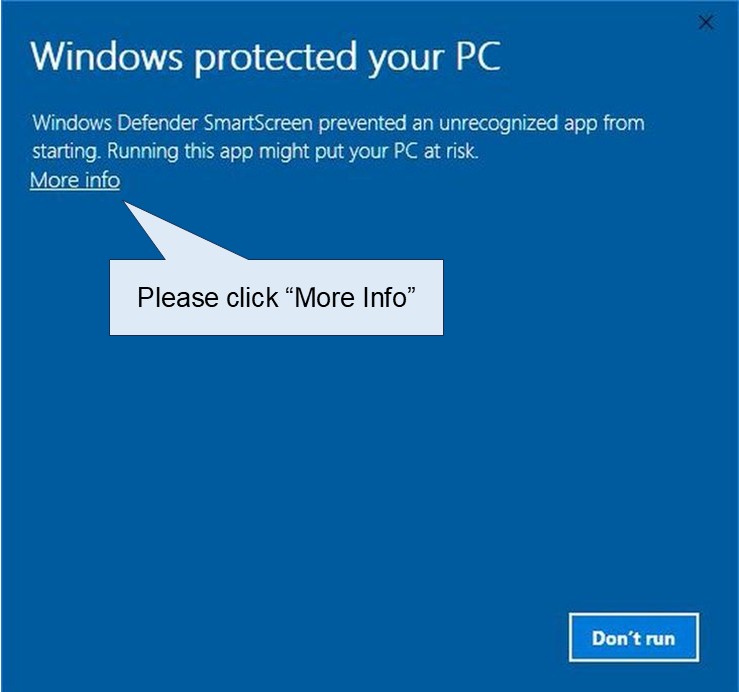
1. If you see this popup entitled "Windows protected your PC", please click on "More info" as shown:
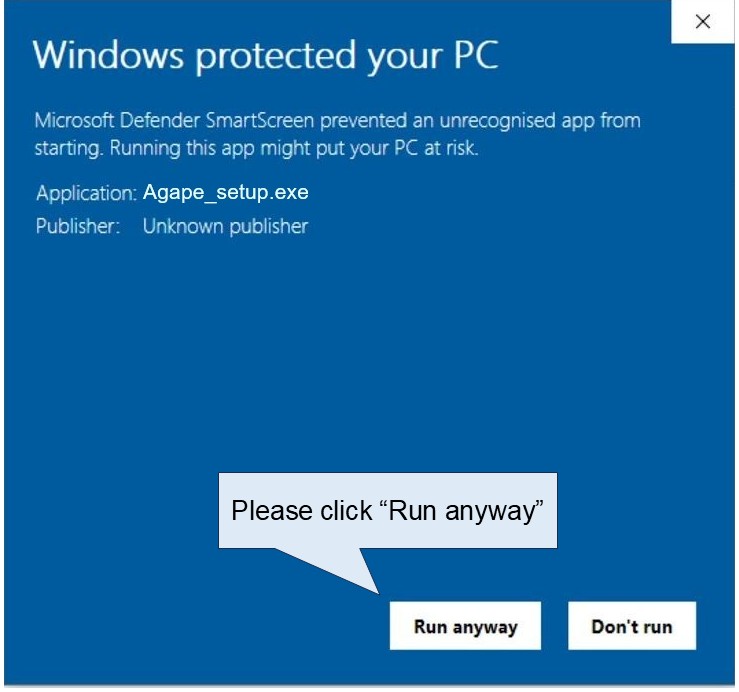
2. Next you will see this popup, please click on "Run anyway" to run the program:
- Just run the installer and click on the "Install" button to install.
- That's it! You should now be able to use FreeShow with the Nepali songs and Bible verses.
- For advanced users, you can easily add image or video backgrounds to the slides. When I have the time later on, I may be able to give some background images and videos for you all to use.
Watch the Tutorial Video (Agape Projection System using FreeShow)
This video by Tee Joo Tatt provides a step-by-step visual guide on using FreeShow for projection (including project lists, adding scriptures, and presenting). It's highly recommended to go through this tutorial before using FreeShow.
Tutorial for Agape Projection System using FreeShow
Tip: If songs or Bible verses still don't appear after following the steps, try restarting FreeShow once more or double-check that the extracted files are directly inside
c:\FreeShow (not inside another subfolder).
FreeShow Setup with Nepali Songs & Bible (Mac)
- Download and install the FreeShow program from:
https://freeshow.app/downloads - After installation, completely quit FreeShow:
→ Go to File → Quit - Install the Kokila font (required for proper Nepali display):
• Download kokila.ttf (right-click the link → choose Save Link As... or Download Linked File As...)
• Locate the downloadedkokila.ttffile (usually in your Downloads folder).
• Double-click thekokila.ttffile.
• A font preview window will open (powered by the Font Book app).
• Click the Install Font button (usually at the bottom-right).
• If macOS asks whether to replace an existing font or shows a warning, choose Install / Replace if you're sure it's the same or newer version.
Alternative methods if double-click doesn't work:
• Open the Font Book app first (use Spotlight: press ⌘ + Space and type "Font Book"), then drag thekokila.ttffile into the Font Book window and click Install.
• Or in Font Book → menu File → Add Fonts to Current User... → select thekokila.ttffile.
- Download the appropriate data file:
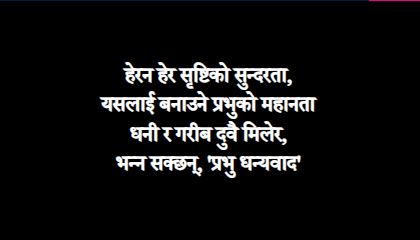
• MacNepRomanized.zip → Nepali lyrics with Romanized text
• MacNepOnly.zip → Only Nepali lyrics without Romanized text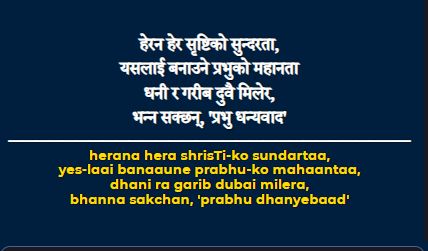
- Extract the downloaded .zip file directly into
Documents/FreeShow.
(After extraction you should see folders likeprojects,media, etc. inside Documents/FreeShow) - Open Terminal program under Utilities
- Run:
cd Documents/FreeShow - Run:
perl fix.pl - Run FreeShow program
- That's it! You should now be able to use FreeShow with the Nepali songs and Bible verses.
- For advanced users, you can easily add image or video backgrounds to the slides. When I have the time later on, I may be able to give some background images and videos for you all to use.
Tutorial for installing Agape Projection System using FreeShow for Mac
Watch the Tutorial Video (Agape Projection System using FreeShow)
This video by Tee Joo Tatt provides a step-by-step visual guide on using FreeShow for projection (including project lists, adding scriptures, and presenting). It's highly recommended to go through this tutorial before using FreeShow.
Tutorial for Agape Projection System using FreeShow
Tip: If songs or Bible verses still don't appear after following the steps, try restarting FreeShow once more or double-check that the extracted files are directly inside
Documents/FreeShow (not inside another subfolder).
This device is not running Windows or Mac OS
You must use a computer or laptop running Windows or Mac OS.